> ## Documentation Index
> Fetch the complete documentation index at: https://docs.dropnotifyaco.app/llms.txt
> Use this file to discover all available pages before exploring further.

# IMAP Setup

> How to create supported email app passwords for ACO account access.

# How To Set Up Email App Passwords

Some ACO retailers require an email app password so DropNotify can access verification codes from your inbox.

Use the provider section that matches your email account. Do not enter your normal email password.

<div className="dn-notice">
  <strong>Outlook / Hotmail not supported</strong>
  <p>Outlook and Hotmail are no longer supported for IMAP in our botflow. Use a supported provider for Walmart, Sam's Club, and Amazon account access.</p>
</div>

### Providers Covered

* Apple / iCloud
* Google / Gmail
* Yahoo

### Security Reminder

* Never post email passwords, app passwords, or login codes in Discord.
* Only submit app passwords through the correct ACO form.
* To revoke DropNotify email access, delete the app password from your email account at any time.

## Apple / iCloud

### Steps

* Visit [Apple Account](https://account.apple.com/account/manage).
* Sign in.
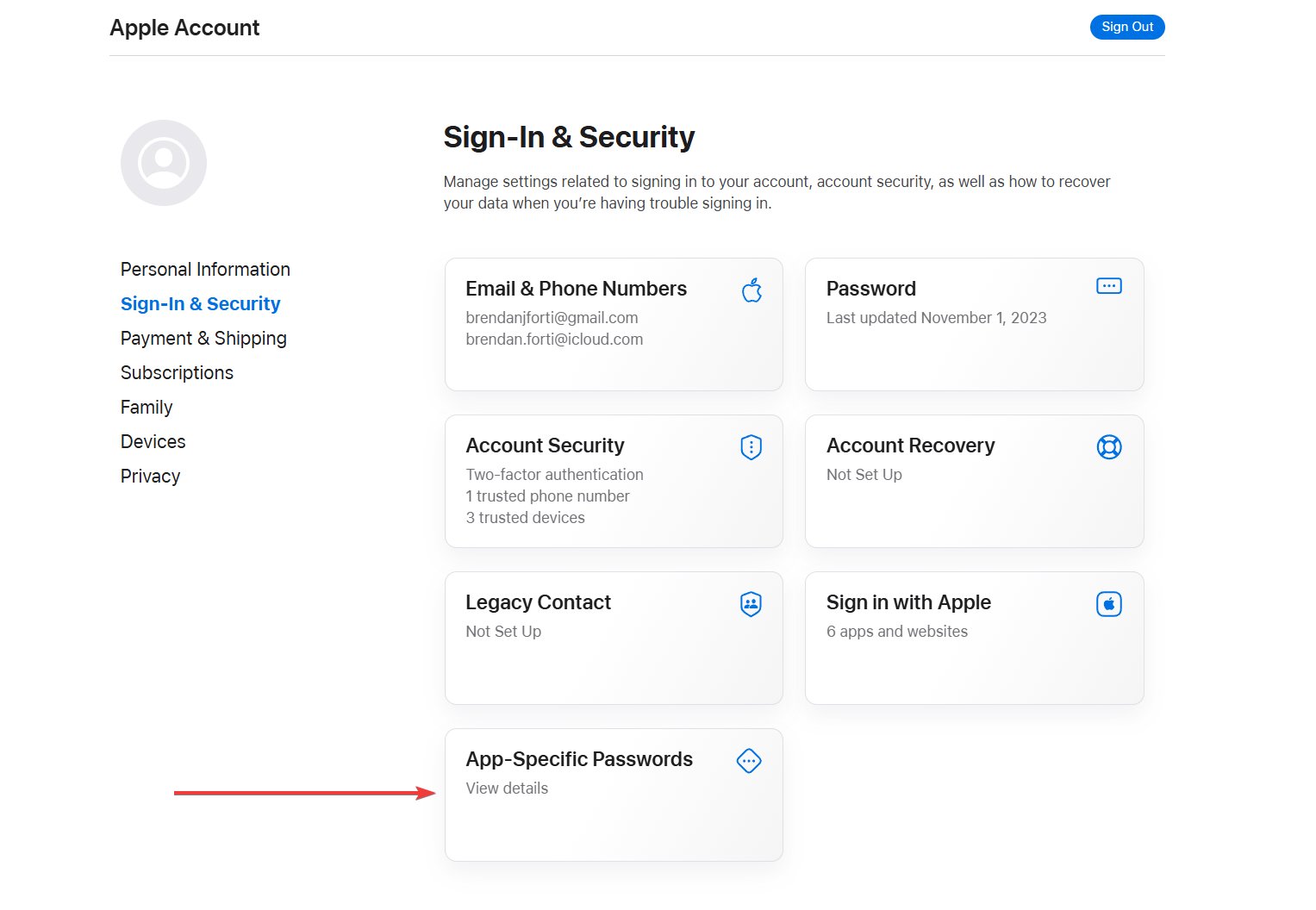
* Open **Sign-In & Security**.
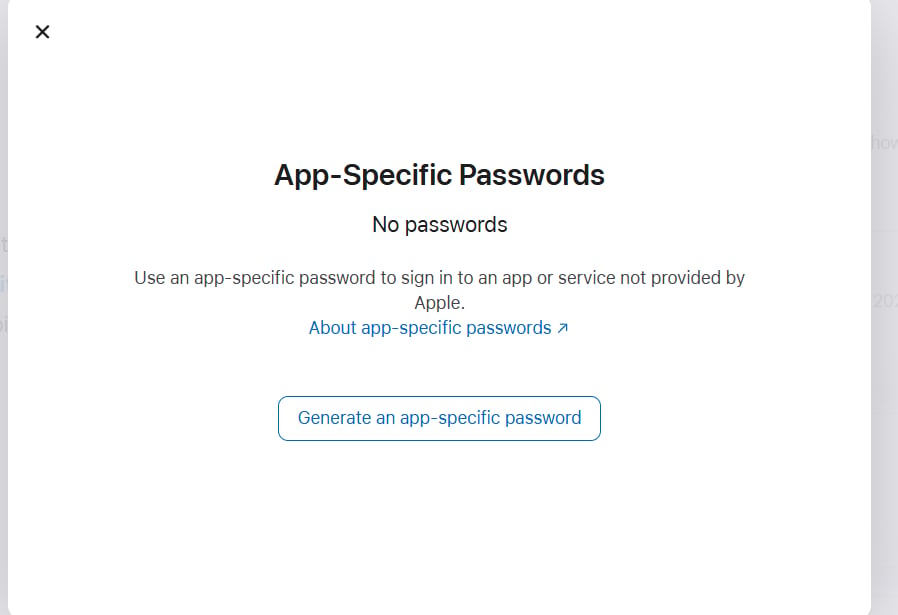
* Click **App-Specific Passwords**.
* Click **Generate an app-specific password**.
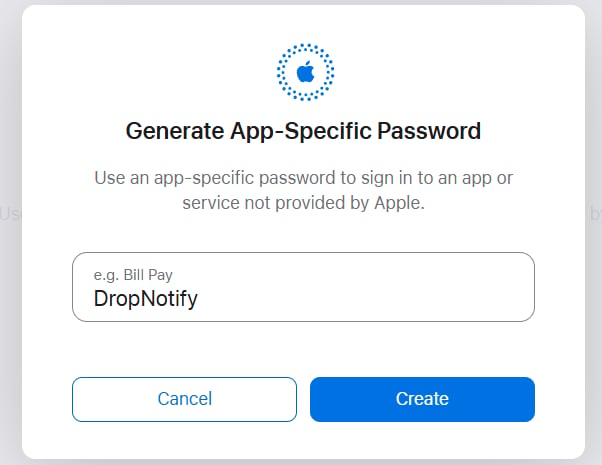
* Name it **DropNotify** or anything you will recognize.
* Click **Create**.
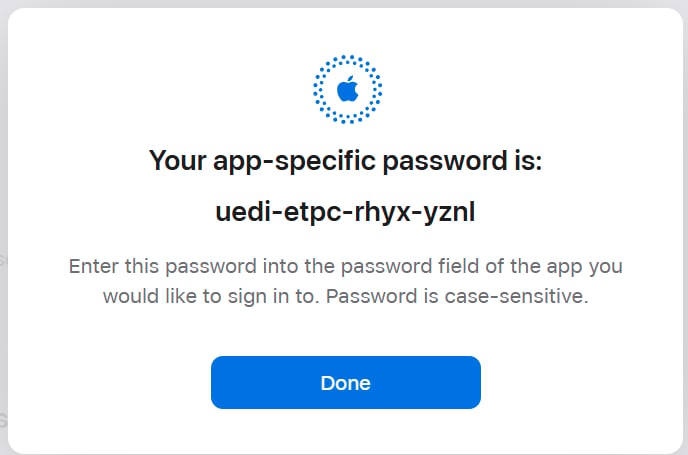
* Apple will show your app-specific password. Copy it and enter it into the required ACO form.
<div className="dn-image-grid">
  <img src="https://mintcdn.com/drop-notify/kVNM-SZCdIPJAWwr/images/guides/imap_apple_security.png?fit=max&auto=format&n=kVNM-SZCdIPJAWwr&q=85&s=493765bca875f12c14c0bc2dd99ca53e" alt="Apple account security screenshot" width="1527" height="1056" data-path="images/guides/imap_apple_security.png" />

  <img src="https://mintcdn.com/drop-notify/kVNM-SZCdIPJAWwr/images/guides/imap_apple_generate_button.png?fit=max&auto=format&n=kVNM-SZCdIPJAWwr&q=85&s=8d7232b49b22d7bcff2f8535d5d3e4d6" alt="Apple app-specific password button screenshot" width="898" height="615" data-path="images/guides/imap_apple_generate_button.png" />

  <img src="https://mintcdn.com/drop-notify/kVNM-SZCdIPJAWwr/images/guides/imap_apple_name_password.png?fit=max&auto=format&n=kVNM-SZCdIPJAWwr&q=85&s=9a669496f1a19581d7628fc3c4c2033a" alt="Apple app-specific password name screenshot" width="602" height="465" data-path="images/guides/imap_apple_name_password.png" />

  <img src="https://mintcdn.com/drop-notify/kVNM-SZCdIPJAWwr/images/guides/imap_apple_password_ready.png?fit=max&auto=format&n=kVNM-SZCdIPJAWwr&q=85&s=1311036236d97dcce965479b54014b69" alt="Apple generated app password screenshot" width="688" height="455" data-path="images/guides/imap_apple_password_ready.png" />
</div>

## Google / Gmail

### Steps

* Visit [Google Account](https://myaccount.google.com/?hl=en\&utm_source=OGB\&utm_medium=act\&gar=WzEyMF0).
* Sign in.
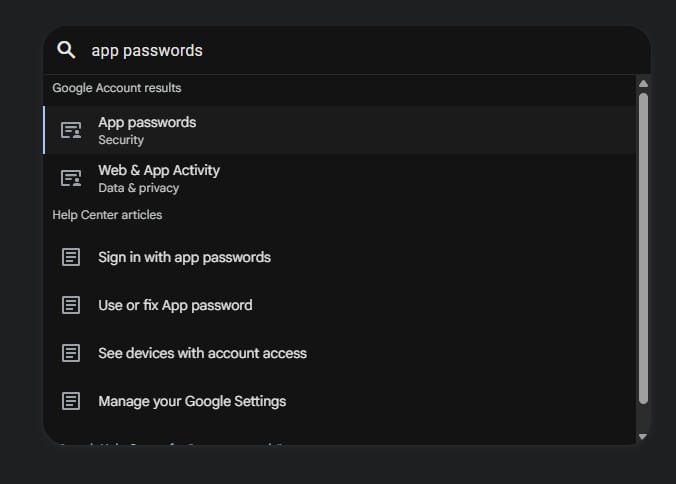
* Search for **App passwords**.
* If you do not see App passwords, turn on [2-Step Verification](https://myaccount.google.com/signinoptions/two-step-verification) first.
* Name the app password **DropNotify** or anything you will recognize.
* Click **Generate**.
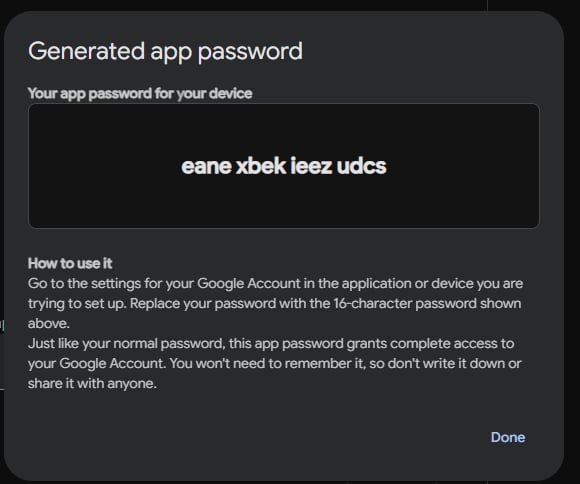
* Google will show your app password. Copy it and enter it into the required ACO form.
<div className="dn-image-grid">
  <img src="https://mintcdn.com/drop-notify/kVNM-SZCdIPJAWwr/images/guides/imap_google_app_passwords.png?fit=max&auto=format&n=kVNM-SZCdIPJAWwr&q=85&s=4d99cb6af3140101f7d53ed2cb6aee88" alt="Google app passwords screenshot" width="676" height="484" data-path="images/guides/imap_google_app_passwords.png" />

  <img src="https://mintcdn.com/drop-notify/kVNM-SZCdIPJAWwr/images/guides/imap_google_generated_password.png?fit=max&auto=format&n=kVNM-SZCdIPJAWwr&q=85&s=7f6670b2205b6801bde0fd5f7d51f52f" alt="Google generated app password screenshot" width="580" height="484" data-path="images/guides/imap_google_generated_password.png" />
</div>

## Yahoo

### Steps

* Sign in to your [Yahoo Account Security page](https://login.yahoo.com/account/security?.lang=en-US&.intl=us&.src=yhelp).
* Under **External connections**, click **Create app password**.
* Enter your app name in the text field.
* Click **Generate password**.
* Yahoo will show your app password. Copy it and enter it into the required ACO form.